Remote desktop software for Windows PCs
One executable. Connects directly over your own LAN or VPN.
Run the same executable on the PC you sit at and the PC you want to control - no installer, no ClearRemote account, no administrator rights at the end you sit at, and no relay service of ours in between. For several PCs, the optional Easy Setup - run once on each PC, for example from a USB stick - copies the program to its disk and adds the firewall rule in one step, and each PC can update itself from a shared folder on your own network once you place a new release there.
Requirements: Windows 10 or 11 (64-bit) with .NET Framework 4.8 (included with Windows), and a LAN or VPN route to the remote PC. The app interface is currently in Japanese. Browser access is also available, with fewer features and an unencrypted HTTP connection.
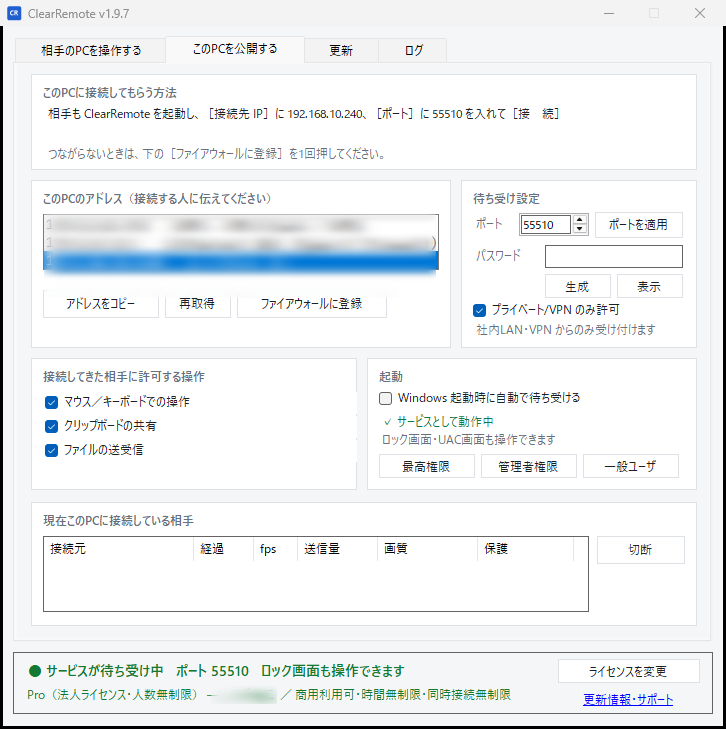
The app interface is currently in Japanese. These screenshots show the current interface. If you would like an English version, register your interest here. No sign-up is required, and the email field is optional. You can evaluate the current Japanese version before deciding whether to buy.
New here?
What is a remote desktop?
No jargon — just three panels.
You want to use a PC that's far away.
But getting there is a hassle — another room, another building, a distant site.
Put ClearRemote on both, and connect.
No installer — just drop the exe and run it. The far PC's screen comes to you.
Operate that PC from your seat.
The picture comes through; your keys and mouse reach it. No trip needed. That's a remote desktop.
How it works
Up and running in three steps
No difficult setup.
Copy and run
Just drop the exe — no installer, no account. Put the same one on both the controlling and the controlled PC.
Share this PC
On the remote PC, open [このPCを公開する] / "Share this PC", turn the listening switch green (待ち受け中, listening) and note the address and port. Setting a connection password is recommended. If it will not connect, press [ファイアウォールに登録] (Add firewall rule) once; this asks for administrator approval.
Connect from another PC
On the controlling Windows PC, enter the remote PC's address and port (and its password, if one is set), then press [接続] (Connect).
Multi-monitor
Their multi-monitor setup, one window per screenPro
Two screens over there, two windows over here.
A dual monitor or triple monitor machine arrives as multiple monitors on your side too:
each remote screen gets its own window, so you can lay a stacked pair out the same way it
sits over there. It stays one connection, which is
why dragging a window from one monitor to the next carries on across the gap, and an
application straddling both is drawn straddling both.
The free version can use per-monitor windows for a total of 5 minutes
on each connection - long enough to work with them before deciding. After that they fold
back into one window; reconnect and you get another 5 minutes. Using them without that limit
needs Pro. Switching between the remote monitors, or showing them all in one window, has no
extra limit beyond the free version's 20-minute session limit.
← scroll sideways →
Put it next to the other way of doing it
The same machine, the same link, the same time of day - only the way it is shown is different. ClearRemote on the left; on the right, the usual approach of putting every remote monitor into one window.
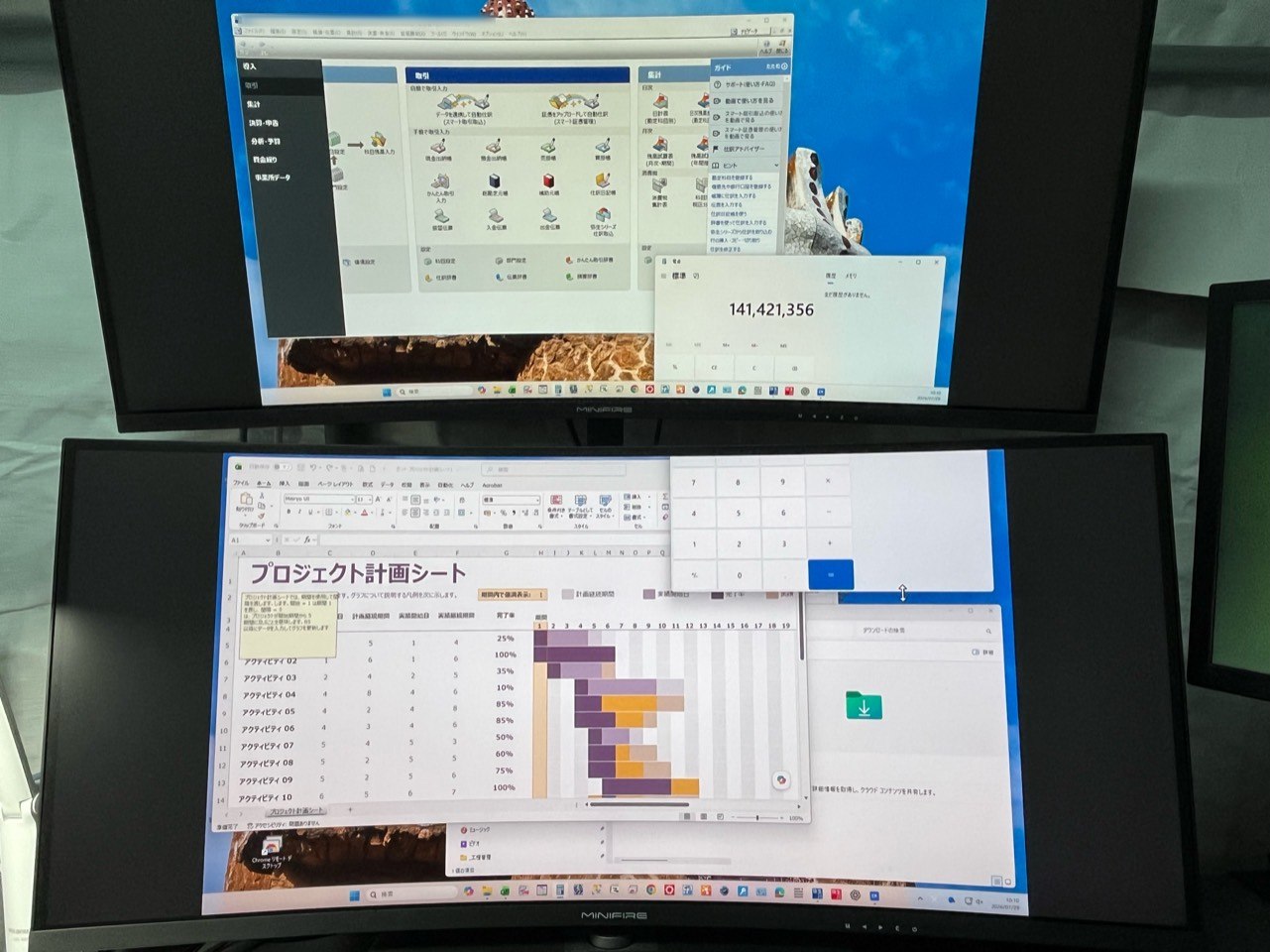
Two screens' worth, on two screens
Monitor 1 above, monitor 2 below, near enough life size - so the text and the drawings stay readable. A window across the seam is still across the seam.
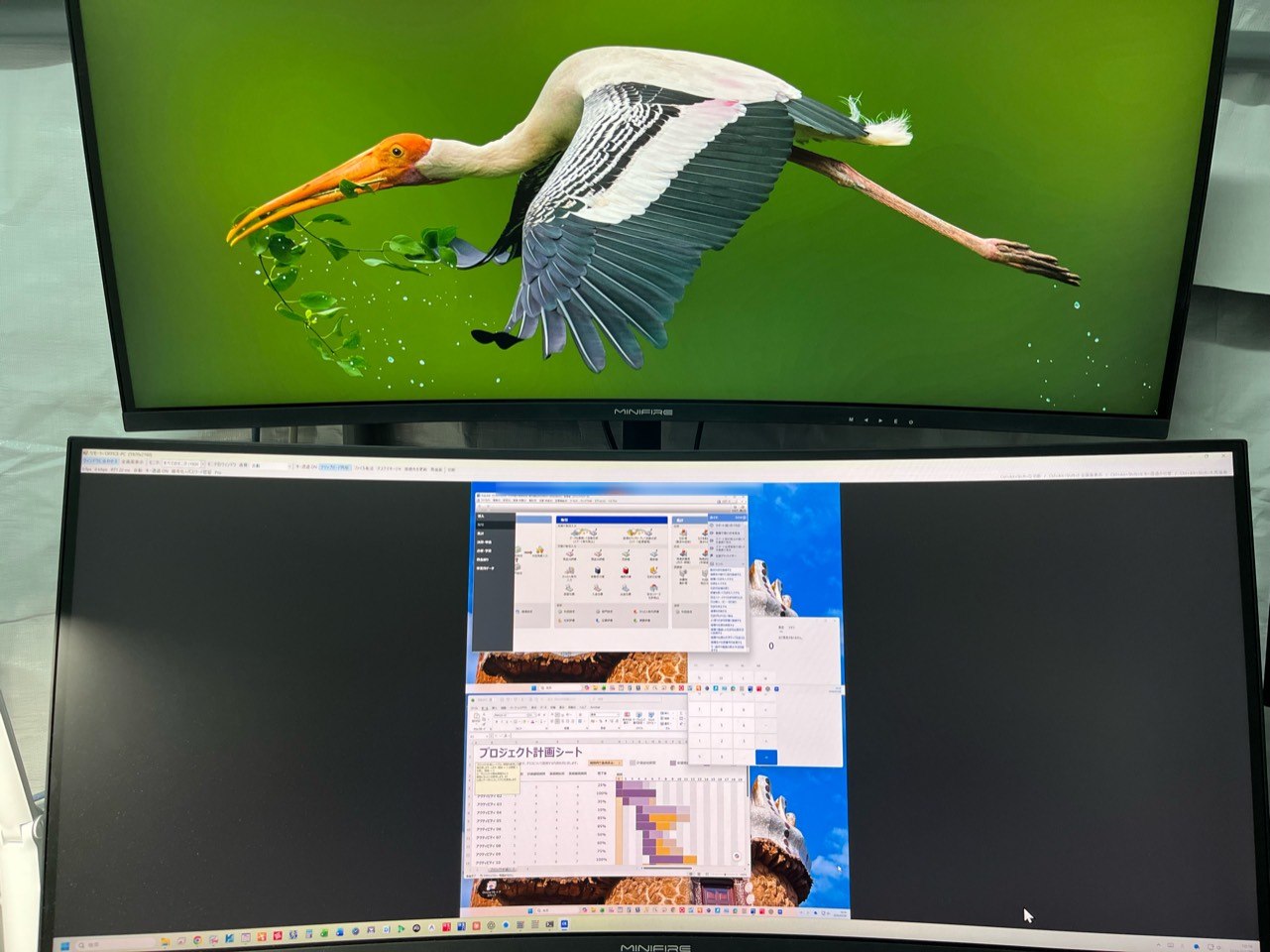
Two screens' worth, in part of one
It shrinks by however much the aspect ratios disagree, so detail goes with it. The other screen stays empty, and what you actually work in is that small rectangle.
Unretouched photographs. The little window near the bottom right of the first picture is the whole of the second one.
"Why not stretch that one window across both screens?"
It is the first thing people suggest, and you can - extend the desktop and drag one window over both monitors. It just does not turn into something you can work in. There are two reasons, and both are visible in the photograph below.
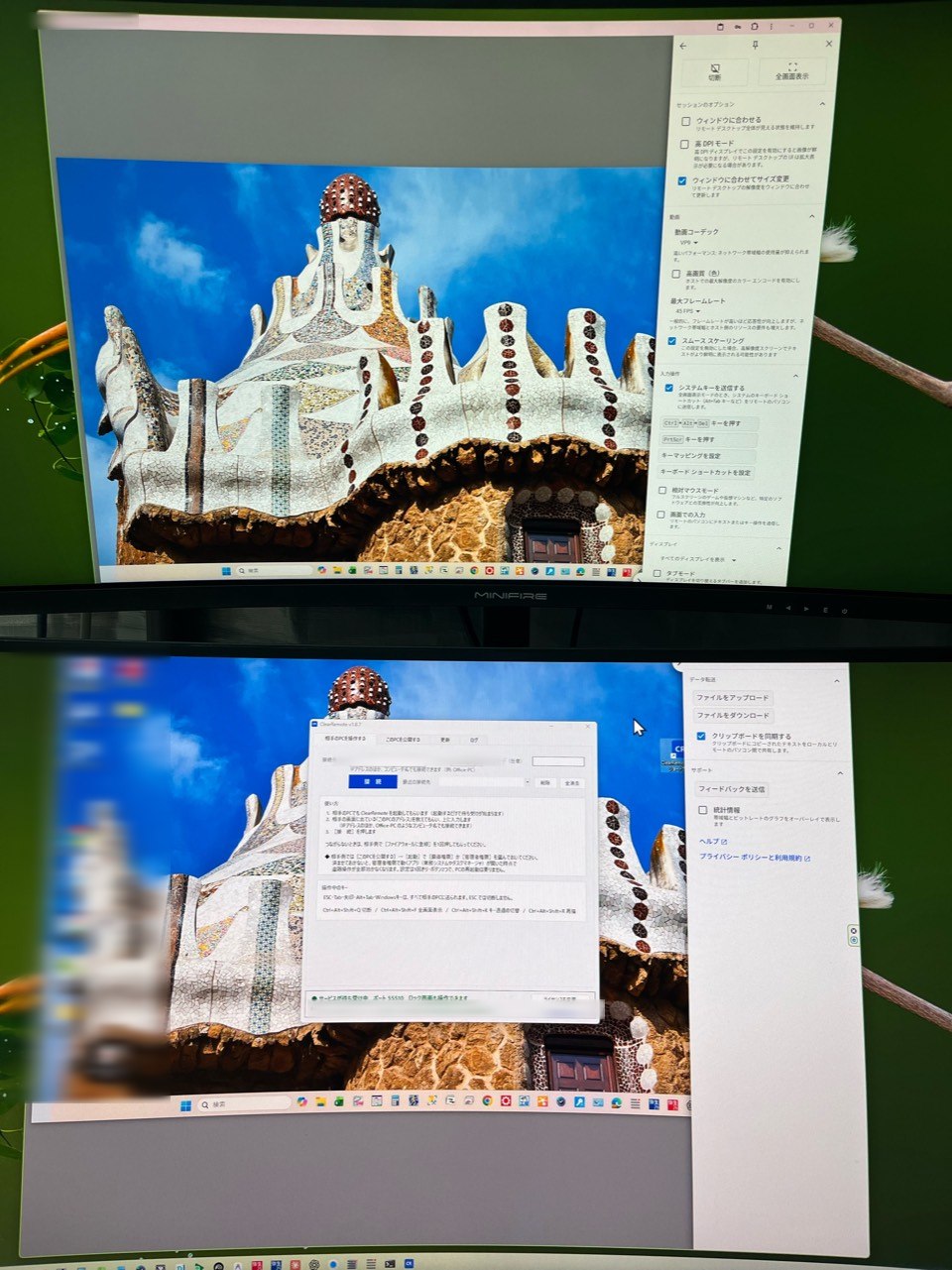
1. The seams do not line up. Stretch one picture over two panels and the gap between your monitors falls somewhere in the middle of it - somewhere with no relationship to where the remote screens actually end. In the photograph, the tool's own settings panel is cut in half by that gap. The same happens to the remote machine's content: a taskbar or a ribbon can land in the gap and simply not be there.
2. The aspect ratios do not match. The remote desktop and yours are rarely the same shape. Keep the proportions and you get margins - the grey along the top and down the right in the photograph. For all that stretching, the picture is no bigger. Ignore the proportions instead and circles become ovals, which is no use for a drawing.
Giving each remote monitor its own window deals with both. Put each window on one of your monitors and the remote screen edges fall on your own bezels instead of somewhere in the middle, and each window keeps its own monitor's proportions. Where your monitors differ in size, resolution or shape from theirs, some scaling or margin remains. And because it is still one connection, dragging across the seam still works.
"Doesn't Windows' own Remote Desktop have a setting for this?"
It does. Windows' built-in Remote Desktop Connection has a "Use all my monitors for the remote session" checkbox under Show Options → Display. Tick it and, if the machine you are sitting at has several displays, the remote session spreads across them. If that works in your environment, use it.
There are two conditions attached, and they are where most people get stuck.
The person at the PC cannot watch
Connecting with Windows Remote Desktop takes the session away from the PC's own screen: the person there sees the lock screen, or is disconnected if they were signed in as someone else. "Let me show you while you watch" is not possible, and you can only work while they are away from the desk.
Windows Home cannot host a session
The machine being connected to needs Pro or better. If the PC on the shop floor runs Home, you never reach that settings screen at all.
Neither applies to ClearRemote. It looks over the shoulder of the session already running, so nobody is thrown out and the Windows edition does not matter - and the remote monitors still arrive one per window.
Switching between monitors in tabs
You only ever see one of them. Moving a window across means switching tab mid-drag, and the remote pointer stops dead at the edge of the monitor you are looking at. An application spanning both looks cut off in either tab.
With ClearRemote
You see both at once. Drag out of one window and it carries on into the other. Close the window for a monitor you do not need and it stays closed next time; where you put each window, and how big you made it, is remembered per machine. On a single local screen you can fold it all back into one window.
Use case
The more machines you keep separate, the more this pays off
The finance PC, the CAD/CAM workstation, the development box, and the one on your desk.
Keeping them apart is the right call. It contains what breaks and it
contains what is stored. Nobody wants the finance data on the machine they check email on,
and a CAM workstation doubling as an office PC means machining waits on paperwork.
The cost shows up afterwards: every machine you separate is another walk across
the building.
The finance PC
It stays connected to the production system and the CRM, and the traffic to the database
never stops. Its memory is spoken for all day, so it cannot double as anything
else - it ends up being a machine of its own.
On top of that, a machine holding the money data does not belong where people come and go.
Put it at another site and "just checking one thing" becomes an hour's round
trip. Over a VPN it is right there on your desk.
The CAD/CAM workstation
An expensive CPU and an expensive GPU in one box - and a machine-shop floor is full of dust and oil mist, which is hard on fans and boards. So in our shop it lives in the air-conditioned CAM room, and because the CAM licence is expensive too, there is only one such machine. Every time you need it, that is a walk there and back.
The GPU box for AI work
The GPU is the expensive part, so there is one machine and several people share it. Training and generation take time, which means the real waste is that machine sitting idle. From your desk, or over a VPN from anywhere, you can queue the next run the moment the last one finishes.
The development machine
At the company writing this page, one PC is given over entirely to development:
software written with an AI agent, and configuration work on a business system
(Salesforce). Editors, test runs and the agent itself all take memory without
asking. Share that with the PC running CAD/CAM and one of them will stall.
Development also spends a lot of its time simply running. While a build
or a test suite works, nobody needs to sit in front of that machine.
Set it going, then look in on it from your desk. That is what the
second machine is for.
Your own machine, left at the customer's site
Some faults only exist inside that network: name resolution is wrong, a
share is invisible, one business system alone is slow. Heard about from outside,
the symptom does not reproduce at all.
Leave one machine of your own on their site and, at night or at the weekend,
you can get into it and look from inside their network. Triage first,
then decide - either you never make the trip, or you make it knowing what to bring.
Use a network route the customer has approved, such as their
VPN. In this example, ClearRemote runs on the PC you leave at the site and the PC you
connect from. The executable runs without a traditional installer, but its use must still
follow the customer's software and network policies.
The one terminal for the production system
Licences and terminals are often counted, so there is one PC that can enter the
data. People queue at it, and the queue is time nobody is working.
With ClearRemote they take their turn at that one machine from their own desks.
There is one screen, so one person drives it at a time.
Whether that system's licence allows it to be used from other desks this way is set by its
vendor's terms - check them first.
ClearRemote exists to remove that walking. Register as many machines as you like and keep their windows open side by side. If one of them has several monitors, those become several windows too. You need to be on the LAN, or inside it over a VPN - it is deliberately not reachable across the open internet (why).
Why
An engineer who lives in remote desktop every day built the best remote desktop he could think of.
ClearRemote is written by one person: a machining engineer who also runs the business.
Eight hours a day and more go on CAD/CAM across several monitors, with the same
hands driving a PC at another site. ClearRemote was never planned as something
to sell - it was built to make that day easier for the person building it.
So the three frustrations below are not researched, they are the ones that got in the way
every day. Nothing is wrong with the tools named - they solve different problems.
The Japanese input key did not get through
In the author's own use, the 半角/全角 key - the key on Japanese keyboards that switches Japanese input on and off - did not reach the far machine, so Japanese input could not be toggled there. Holding Escape left full screen, and from an Android tablet Escape ended the session. Several monitors were shown one at a time. Setting up the host side also took a Google account, a host installer and a PIN - a lot to talk somebody through over the phone.
They normally go through the vendor's servers
In their standard setup, a session is brokered through the vendor's servers.
If outbound traffic is blocked, or there is no internet at all, check whether a
LAN-only or on-premises option is available for your licence.
Pricing is an annual subscription for as long as you keep using it, and sessions being
restricted once use "looks commercial" is a commonly reported experience.
We have not used them ourselves, so we make no claim about their
picture quality or speed. If you want to compare, put a real drawing on the screen with
the free version and look - that settles it better than anything written here.
Windows Home cannot be connected to at all
The machine being connected to needs Pro or better. Shop-floor and
office PCs are routinely bought with Home, and then
you never reach that settings screen - and nobody buys a new licence per
machine to fix it.
Even on Pro, connecting locks the screen of whoever is sitting there, which rules
out "let me show you while you watch".
From the maker's post on X (August 7, 2026; original in Japanese)We are a seven-person machine shop in Komaki, Japan. The finance PC at the head office 20 km away, the servers in the server room, the CAM workstation, the production-control terminal — I operate all of them from the PC in front of me, without leaving my seat. I depend on remote desktop every single day.
Every time I used one, three wishes kept coming back: every key should reach the far machine; the thin lines of CAD models and toolpaths should not blur; and the other machine's two or three monitors should stay two or three monitors on my side. Tools existed that did one of these each — none did all three. So I wrote my own.
Choose
Which one should you use
These tools are not better or worse than one another — they assume different things.
A product with its own relay service can reach PCs across the internet, with the session passing
through the vendor's servers. ClearRemote has no relay service and works only inside a
LAN or over a VPN; if the VPN itself relays traffic, that depends on the VPN.
Where ClearRemote is not the answer, the table below says so.
Finding that out after paying is the worst outcome for everyone.
| Inside a LAN or VPN, see the other machine's monitors in separate windowsPro | ClearRemote fits. This is the reason it exists. Two screens there, two windows here. There are photographs of it further up. |
|---|---|
| Work on the screen together with the person sitting at it | ClearRemote fits. Connecting does not lock that person out. You both look at the same screen, so "press that one" works. |
| Read CAD drawings, thin lines and small text without smearing | ClearRemote fits. Choose 無劣化 (Lossless) and text and fine lines are sent without compression artefacts. The Windows app's default, 自動 (Auto), adjusts quality to the connection. Check your own drawings with the free version. |
| Get past the lock screen or a UAC prompt after a rebootPro | ClearRemote fits. Choose [最高権限] (Highest) under Startup and a machine rebooted overnight by Windows Update is still reachable in the morning. |
| Look at a customer's or supplier's PC, with no VPN between you | ClearRemote does not fit. Running a VPN into someone else's network is rarely realistic. One-off remote support like this is better served by a product with a relay server. ClearRemote has none because keeping traffic off the open internet was the priority — this is the other side of that choice. |
| Reach your own PC, only ever yourself | Windows' own Remote Desktop is enough. On Windows Pro it costs nothing extra. There is nobody at the PC to lock out, so the standard tool's weak point never bites you. Consider ClearRemote only if that turns out not to be enough. |
| You cannot put anything on the far machine (no USB, no permission to install) | ClearRemote does not fit. One exe has to be placed there and started. If even that is impossible, look for something that needs nothing installed at the far end. |
| Work from a phone, tablet or Mac | Only through a browser, with limits. There is no phone, tablet or Mac app, and the PC being connected to must run Windows. From inside the LAN or VPN, a phone, tablet or Mac can connect with a web browser, with fewer features than the Windows app, and the browser connection is not encrypted. See Browser, and try your own device with the free version before buying. |
If you are unsure, try it for free first. Evaluating it to decide whether to adopt it does not count as business use, so a company can do that on the free version too. Image quality, key pass-through and file transfer are all unrestricted, and per-monitor windows can be tried for 5 minutes on each connection. Sessions end after 20 minutes — reconnecting is immediate. You will know quite quickly whether it suits you.
Features
What's different
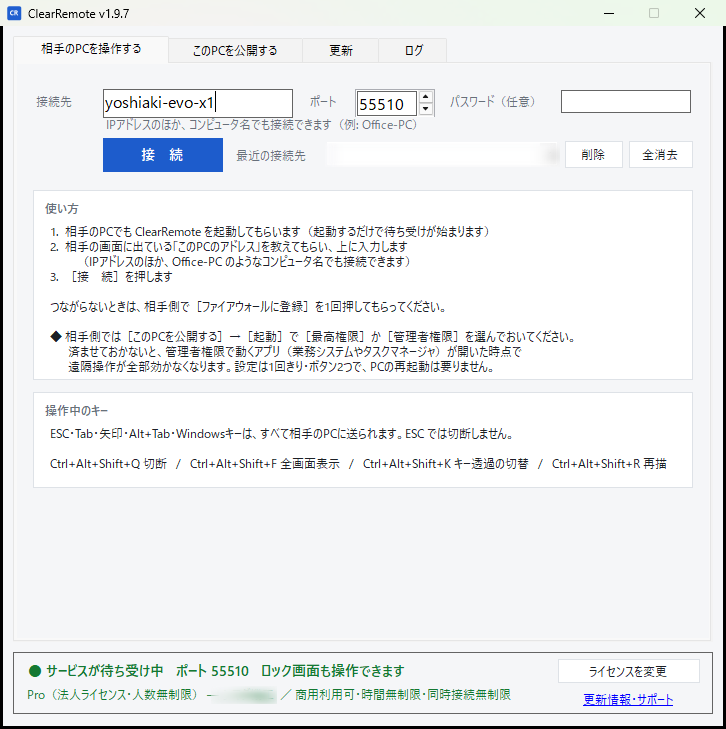
Not a longer feature list — just the problems above, actually fixed.
Windows keys and shortcuts reach the remote PC
Escape, Tab, arrows, Alt+Tab, the Windows key and Alt+F4 are sent to the remote PC - and
so is 半角/全角, the Japanese keyboard's input-mode key (there is an
on-screen button for it too). Alt+Tab switches windows on the remote PC,
not on yours. Keys travel as scan codes rather than virtual keys, so the
far end sees them as real key presses. Ctrl+Alt+Del cannot be sent; a
Ctrl+Shift+Esc (Task Manager) button is provided instead. To leave the viewer, press
Ctrl+Alt+Shift+Q.
Choose Lossless for text and fine lines
With 無劣化 (Lossless) selected, the screen is split into 128×128 tiles and only changed tiles are sent, each encoded losslessly as a solid colour, a palette or deflate, so text and thin lines are not blurred by compression. The Windows app's default, 自動 (Auto), adjusts quality to the connection. Check responsiveness and readability on your own work with the free version.
Little to set up on the far end
No installer, no account, and by default no registry keys - you can carry it around on a USB stick. On the PC being connected to, turn listening on and add the firewall rule, which asks for administrator approval once (one button inside the app, or [Easy Setup] does both for you). Choosing Administrator or Highest under Startup also asks for approval.
A distant PC updates without a second route in
When it finds a newer build in the folder you nominated, it replaces itself while nobody is connected. You do not need another remote tool just to update this one. See Rollout.
Multi-monitor, one window eachPro
Two or three screens on the far end can each get their own window here. It stays one connection, so dragging across the seam works and an application spanning two monitors is drawn spanning two. See Multi-monitor.
Files and folders move differently in each direction
To send (here → there): drag files or folders onto the remote picture or the
file-transfer window. They land in C:\Users\Public\Downloads on the
other machine, or in the folder open in the file-transfer window. Subfolders come along,
but empty folders are not created, and copy-and-paste does not work this way round.
To receive (there → here): Ctrl+C on their screen, Ctrl+V on yours.
Folders arrive with every subfolder, empty ones included. Only names and sizes travel when
you copy; the contents arrive when you paste, and your PC needs the file's size plus 32 MB
free.
Folder transfer arrived in v1.18.3; to receive folders, both PCs
need v1.18.3 or later. One transfer handles up to about 4,000 items and 32 levels of folders.
Transfers are verified with SHA-256 and run behind the picture and input, but a large paste
keeps the viewer waiting until it has arrived. Text and images on the clipboard sync both
ways.
You can sign in at the lock screenPro
Choose [最高権限] (Highest) under Startup and the lock screen and the UAC prompt become things you can see and drive. When Windows Update reboots the machine overnight, you type the password in from wherever you are instead of driving to the office at the weekend. There is no installer, and the same box turns it off again.
Putting it on a distant PC needn't mean going there
What you ask of somebody at the far site is plug in the USB stick, double-click one icon, click Yes once. That covers copying it to the disk, the firewall and the service, and then the address to read out to you appears in large type on the screen. No networking knowledge and no decisions required. See Rollout.
When input has nowhere to go, it says so
In Normal user mode, ClearRemote cannot control applications running with higher privileges, and input may stop while an elevated window is in the foreground. ClearRemote displays a message when this blocks input. Administrator startup mode allows control of elevated applications and is available in the free version; Highest mode adds lock-screen and UAC access and requires Pro.
No mouse on the far machine? The pointer still works
A PC that is only ever reached remotely often has no mouse plugged into it, and
Windows draws no pointer at all on a machine with no mouse - so with
most remote control tools there is nothing on screen to aim with. Leaving a cheap
mouse plugged in purely to work around that is a common habit.
ClearRemote sends the pointer's position and shape apart from the picture, so
it looks the same whether a mouse is attached or not - including the
double arrow at a window's edge that tells you the edge can be
grabbed. Without it, resizing is a blind hunt.
This one is in the free version too.
No monitor, no keyboard, no mouse - that is fine
Power, a network cable and a small dummy plug - three things are all it
needs. A PC in the corner of a warehouse, inside a rack, or left behind at a customer's
site works exactly as it would on your desk, and the pointer keeps its
shape, so even resizing a window is not a blind hunt.
The dummy plug is a fingertip-sized part that goes into an HDMI or DisplayPort socket.
Boot a PC with no monitor attached and Windows drops the desktop to a tiny
resolution - 640×480 on the machine we tested. Leaving one
plugged in keeps it looking as though a display is there, so the resolution stays
where you set it. They are sold everywhere.
The machine you use most is already filled in
The address and port you connected to last time are there when the window opens, so the usual session is launch and press Connect.
Buy it once
A one-time purchase and no subscription - buy once and it keeps working across the v1 and v2 series. No renewal, no seat audit, no surprise "commercial use detected" disconnection, and nothing stops working if you let a subscription lapse, because there isn't one.
From a browser too - no app to install (tablet, phone)
When the machine in your hand is a tablet or phone, just
open http://<their-IP>:port/ in a browser and you are in -
nothing to install on the tablet or phone (set a browser password on the PC first). An
on-screen row of ESC, F1-F12, arrows and modifier keys is there,
and two-finger scroll and pinch-to-zoom work. Copy and paste travel across too
(a tablet screenshot can be pasted straight into the PC).
Reachable from inside your LAN or VPN only, the same
as the native app. This path is not encrypted, so use it inside a network you trust
(for the strongest posture, use the native app connection). See
From a browser.
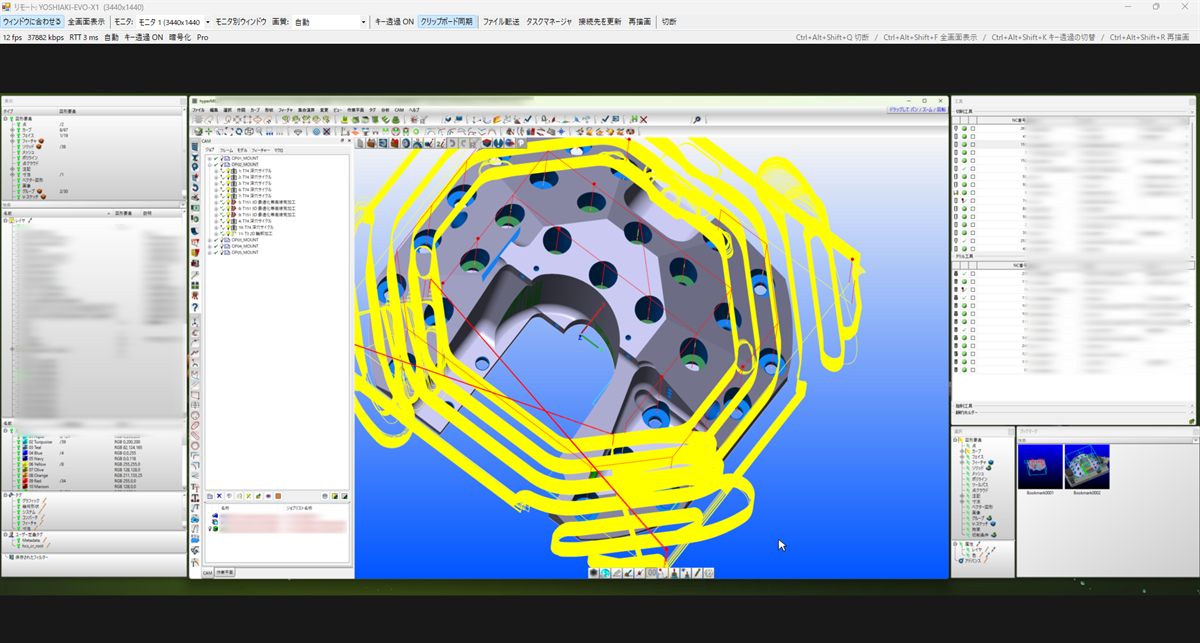
Anything belonging to a customer - the file path, part names, tool names - is blurred here.
Browser
From a device with no app - use a browser
A tablet or phone while you are out, a machine you were lent, anything you cannot or will not install ClearRemote on - if it has a browser, it can reach the same PC. The author uses this every day from an Android tablet while away from the office.
Just a browser - no ClearRemote to install
From inside the same LAN or VPN, open http://<their-IP>:port/ and type the
browser password. No ClearRemote app, no account, no extension. The device
can remember the password if you let it, so next time it is just open and connect.
From outside the office you come in over a VPN first, the same as the
native app - the only thing the device needs is a VPN client; there is nothing of ours to install.
Built to be used with fingers
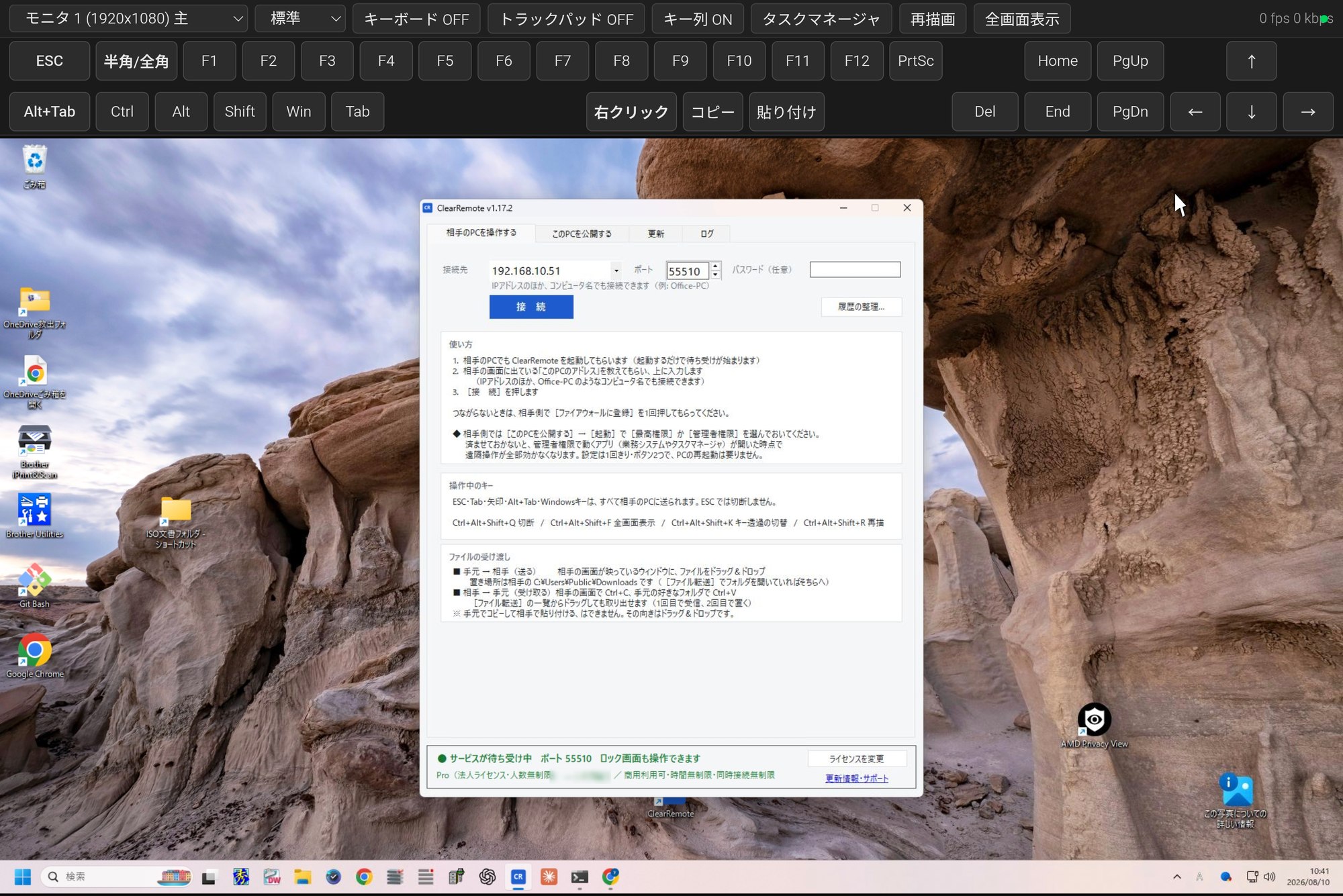
An on-screen row of ESC, F1-F12, arrows, Home/End, modifier keys (which latch),
Alt+Tab. Two-finger scroll, pinch to zoom, tap for right-click, and Japanese input
all work. So a small tablet can still read full-HD text, the view follows the pointer while
zoomed in.
Plug a keyboard into a tablet and its hardware ESC still
will not work - Android turns ESC into Back before the page ever sees it, and a web
page cannot stop that (measured July 2026). That is why ESC sits on the on-screen row.
Copy and paste travel too
Text goes both ways: one tap on [Copy] brings what was copied on the PC
over to the tablet, and [Paste] sends the tablet's text or images to the PC.
A screenshot taken on the tablet can be pasted straight into Excel or a chat on
the PC - picked from the gallery, so it works even on devices that cannot copy
screenshots to the clipboard.
Images travel one way only, tablet to PC: a page served over plain
HTTP is not allowed to write images into the device's clipboard. Saying so plainly.
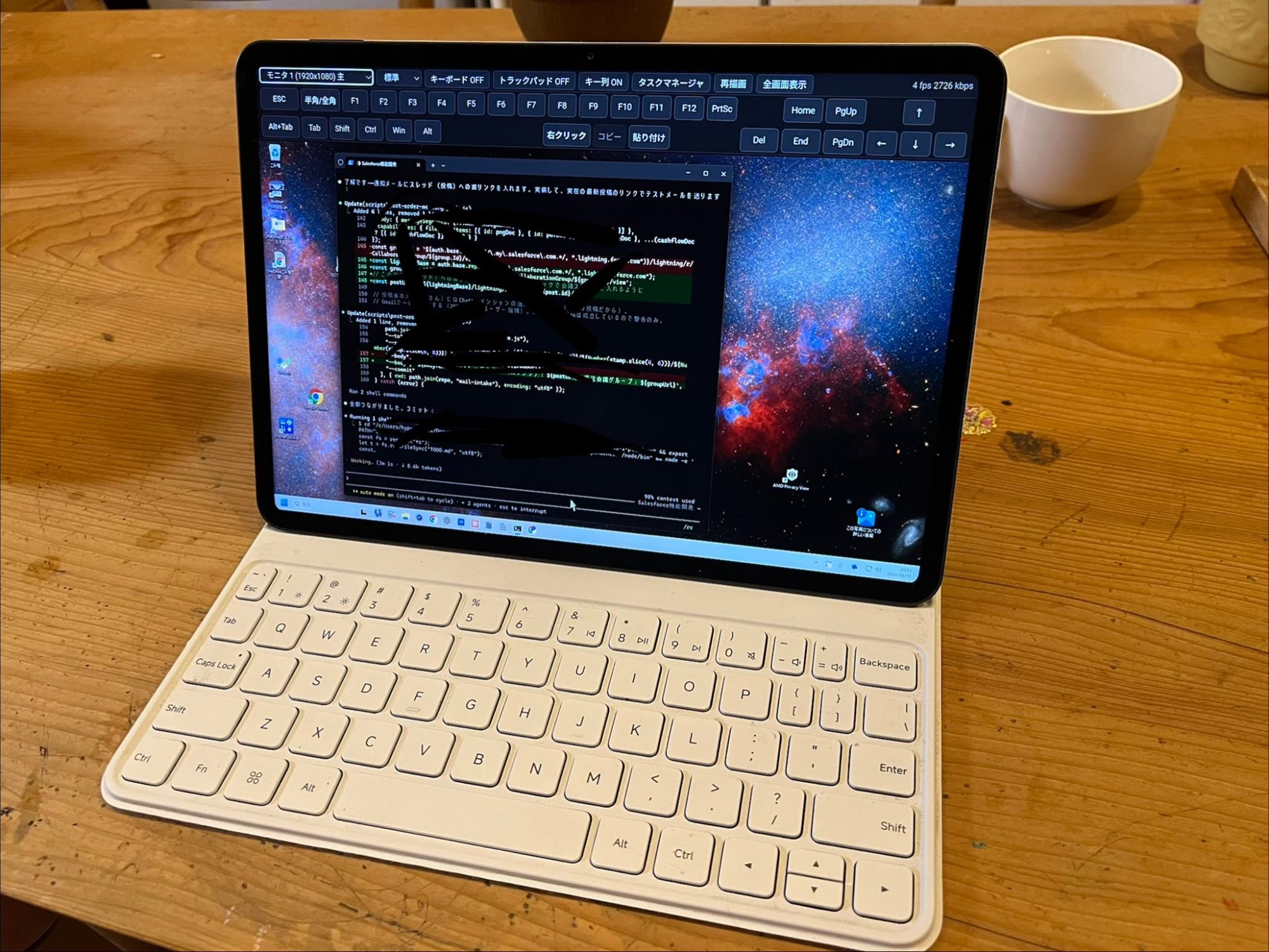
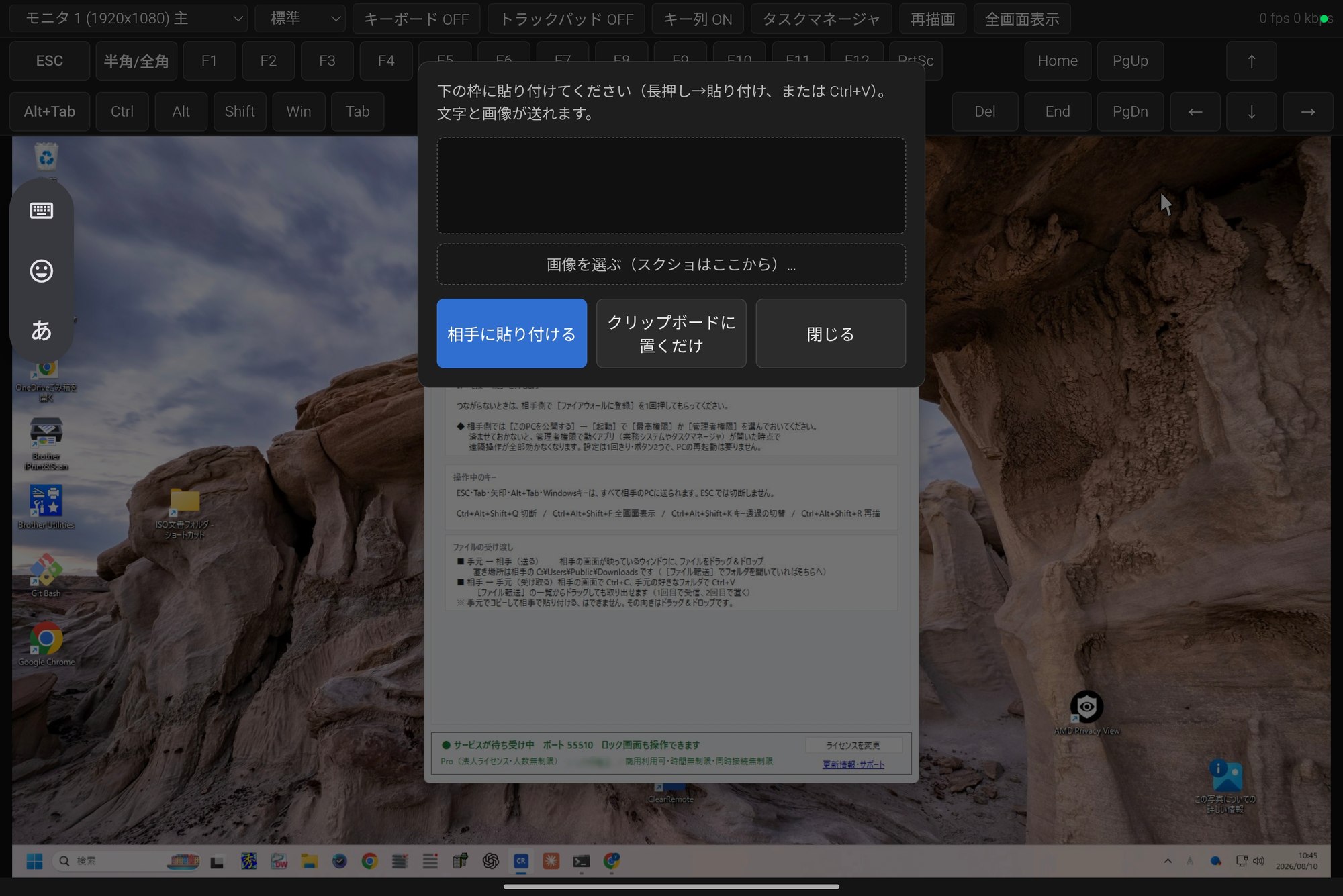
The two rows of ESC and F1-F12 near the top are the on-screen keys. A tablet's hardware ESC does not work, so ESC gets tapped up here instead. Command-line AI tools lean on ESC constantly - you can read "esc to interrupt" along the bottom of the screen - so that one row decides whether a tablet stays something you can only look at, or becomes something you can work on.
This is real work in progress. The internal email address on screen has been blacked out.
It is reachable from inside your LAN or VPN only - the same as the native app;
public internet addresses are refused. But "the same network" does get through:
if you take this PC onto café or hotel Wi-Fi, the strangers sharing it pass the same check.
On a PC you carry out of the office, leave the switch red - 接続拒否, refusing connections.
Also, the browser path is not
encrypted: someone already on the same network can read what crosses it. It is the same
exposure as any internal plaintext service, so use it inside a network you trust. When you want
the traffic encrypted, use the native app connection.
To turn it on, set a browser password in the app being connected to, under "Browser
access" (while it is blank, browser connections are refused). Browser access has the
same free/Pro split as native: the free version limits how long one session lasts, Pro is
unlimited.
Windows app and browser access
Both connect to a Windows PC over your LAN or VPN. Browser features can depend on the device and browser; test the combination you intend to use.
| Feature | Windows app | Browser access |
|---|---|---|
| Remote PC | Windows 10/11, 64-bit, with .NET Framework 4.8 | The same Windows host |
| Remote monitors | One monitor, all in one window, or one window per monitor. Per-monitor windows need Pro after 5 minutes per connection. | Pick a monitor from the selector in the browser view. Separate windows per monitor are not available in the browser. |
| Keys | Common Windows keys and shortcuts, including Escape, Alt+Tab and 半角/全角. Ctrl+Alt+Del cannot be sent. | On-screen keys: ESC, 半角/全角, F1-F12, arrows, Home/End, latching modifiers and Alt+Tab. On Android, a hardware keyboard's ESC is taken by the system (measured July 2026), so use the on-screen ESC. |
| Text clipboard | Both directions | Both directions, using the Copy and Paste controls |
| Images | Clipboard sharing in both directions | Device to remote PC through the Paste panel or image picker; not remote PC to device clipboard |
| Files and folders | Folder transfer is available from v1.18.3. Local to remote: drag and drop, without empty folders. Remote to local: copy and paste, including empty folders; both PCs need v1.18.3 or later. | Not available in the browser. Images can be sent from the device through the Paste panel. |
| Connection encryption | Encrypted by ClearRemote | Not encrypted (HTTP/WebSocket); use it only on a network you trust, or use the Windows app |
| Passwords | A connection password can be set on the remote PC (recommended). | A separate browser password is required. |
| Free version | 20 minutes per session; per-monitor windows for 5 minutes per connection | 20 minutes per session |
Browser access has been tested on an Android tablet; we have not published results for Mac, iPad or iPhone browsers. Try your own device and browser with the free version before buying.
Rollout
Nobody has to walk round the building
Remote control software has an odd blind spot. You install it so you don't have to visit distant machines — and then getting it onto them, and updating it afterwards, means touching every machine anyway. ClearRemote treats both ends as part of the job.
Check one thing first: can you reach that site at all? ClearRemote's job is showing the screen and taking your input. Getting the network to reach a distant PC is not its job. The same LAN, a site-to-site VPN, or a remote-access VPN has to put you within reach of that machine first. Post a USB stick and somebody sets it up perfectly, and you still cannot connect if nothing routes there. If that part is missing, see Working from outside.
Getting it on there
There is one idea behind all of it: ask as little as possible of the person at the far end. No network settings, no expertise, no judgement calls. What you ask for is one double-click and one Yes.
A. Post a USB stick
Put the whole package on a USB stick and send it. All the person there does is
plug it in, double-click [Easy Setup] and click Yes once.
Copying it to the disk, the firewall rule and the first launch are done for them, and
the address to read out to you appears in large type at the end.
Nothing technical is required, and the stick can come straight back out.
Put the licence file on the stick as well and that same single pass gets the machine
all the way to drivable at the lock screenPro.
B. Just put the file there
Copying one exe across and running it works too - no installer. The only registry entry is the auto-start value written if you tick [Listen automatically when Windows starts] (choosing the highest privilege registers a Windows service instead). For trying it out, or for a single machine, this is the quickest route. It is also how you try the free version.
| The administrator prompt (UAC) | Adding the firewall rule, and choosing Administrator or Highest under Startup, each ask for administrator approval on the PC being connected to. Highest (a Windows service) is what reaches the lock screen and UAC promptsPro. A ClearRemote session running as a normal user cannot click that first approval, so arrange it on site: send [Easy Setup] on a USB stick and the person there clicks Yes once - with license.key on the stick, that same Yes also registers the service. |
|---|---|
| If you don't need the lock screen | No service is registered. Leave Startup at Normal user, or choose Administrator (a logon task) to drive elevated applications. Turn listening on - a fresh install does not listen - and add the firewall rule below. The free version goes this far too (free is for personal, non-commercial use and for evaluation before a business purchase). |
| Firewall | The machine accepting connections needs one rule, once. [Easy Setup] adds it as part of the same Yes. By hand, it is the [ファイアウォールに登録] (Add firewall rule) button inside the app. |
| Does the USB stick need to stay plugged in? | No. Easy Setup copies the program to the PC's own disk, so the stick can be removed once setup has finished. |
| Handing out the licence | Put license.key on the USB stick and setup installs it along with everything else. Nobody has to visit each machine to register it. |
| Taking it off again | Double-click [Uninstall] in the same package and it unregisters the service, removes the startup task, deletes the firewall rule and clears the settings and licence folders (all three) - your license.key is copied to the desktop first. One administrator prompt.If you only ever copied the exe across, deleting that file is the whole job. No registry keys of our own are created beyond the standard auto-start value, and only if you asked for it. |
Keeping it up to date
Once it is on there, the same thinking applies. Nobody drives out to a site to update it.
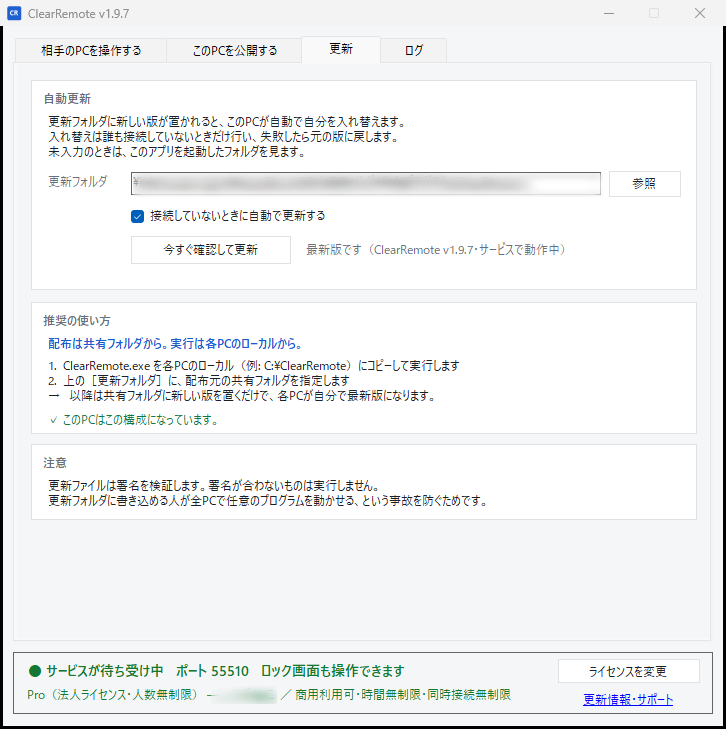
1. Put the new build on a share
A file server or NAS is enough. Each PC is pointed at that folder once, and never again.
2. Each PC swaps itself
It waits for a moment when nobody is connected, replaces its own executable and restarts. A session in progress is never cut short.
3. If it goes wrong, it goes back
A failed swap is rolled back to the previous build and restarted. An update must never be the reason someone has to drive to a site.
| While you are connected | You can update the machine you are looking at. The picture stops for a few seconds and the session picks itself back up when the machine returns - there is nothing to reconnect by hand. |
|---|---|
| Package verification | Update packages are signed with our private key and the signature is checked before anything runs. An unsigned or altered package is ignored. Otherwise write access to that share would be a way to run any code on every PC. |
| Internet access | Not required for folder-based self-update. What it watches is a folder path, not a URL, so this works on a closed network. PCs without a shared folder can press [ウェブから更新] (Update from the web, v1.20.0+), which fetches the new version from our site only when pressed. |
| Multiple sites | Works with replicated NAS setups. Each PC can watch its own site's copy, and a package that is only half-replicated is rejected rather than half-applied. |
| Right now, please | While connected, the viewer has an [Update the remote machine] button that applies it immediately. |
| If you'd rather not | Clear [Update automatically while nobody is connected] on the Update tab. Swapping the exe by hand remains perfectly fine. Note that leaving the folder blank does not switch it off: an unset folder means "the folder this exe was started from". If you run the exe straight off a share, that share is the update source. |
Network
Working from outside: come in over a VPN first
ClearRemote works inside a LAN or a VPN only. A connection from a public address is refused even with the right password, and there is no switch on screen to lift that - the checkbox that used to offer it has been taken off the screen. (It can still be lifted by hand-editing the settings file, for the older VPNs that hand out addresses outside RFC1918. Doing so takes a pass-phrase line you have to type yourself, so nobody arrives there by accident.)
Why it cannot be switched off
ClearRemote is built around connecting with no password, because inside
a LAN that is the fastest and least annoying thing.
Expose that same program to the open internet and the property inverts:
whoever finds the port owns the machine. Ports on public addresses are
scanned continuously - being found takes hours, not days.
Connections between the Windows apps are always encrypted (browser access is not), but encryption stops eavesdropping, not
somebody connecting through the front door. So rather than warning you and letting you
do it anyway, the option is not there.
The VPN is a one-time job
Once the sites can see each other, ClearRemote takes over.
The USB-stick setup assumes this too: posting a stick to a distant site
installs the program, but you still cannot reach it unless the network does.
The order is VPN first, ClearRemote second.
If your company already has a VPN, ask your IT administrator to confirm that it permits
access from your device to the remote PC and its listening port. Connect through the
approved route, then use that PC's LAN or VPN address in ClearRemote.
If you do not have a VPN yet
You need a VPN that lets your device reach the remote PC; for work, use one your organisation approves. ClearRemote does not need any particular VPN brand. We do not sell, install or support VPN equipment - the rows below are starting points, and the Synology row is the author's own setup.
| You already have a VPN | Ask your IT administrator whether it permits access from your device to the remote PC and its listening port. An existing VPN does not necessarily allow communication between every device. |
|---|---|
| Japan-specific example: Synology VPN over MAP-E | In the author's tested Synology RT6600ax setup, OpenVPN was used to reach the site on a
shared-address IPv4-over-IPv6 (MAP-E) connection, while SSL VPN was used at the
plain-IPv4 site. The available VPN mode depended on that setup's port and protocol
restrictions. This is an example, not a requirement for ClearRemote. See
the tested configuration. VPN Plus Server is a Synology router (SRM) product; the VPN Server package for a Synology NAS is a different product. |
| Your connection restricts incoming ports | Some ISP connections share one public IPv4 address between many customers or limit which ports you may use (in Japan, MAP-E services such as v6 plus do this), so a VPN port cannot simply be opened. Mesh VPNs such as Tailscale or ZeroTier avoid port forwarding: install the client on both ends. Check each provider's current pricing and terms, including whether your plan covers business use. |
| The machine belongs to someone else | Running a VPN into a customer's network is usually not realistic. ClearRemote is the wrong tool for that. One-off support of arbitrary machines is what relay-based products are for. ClearRemote has no relay precisely because it makes no outbound connections when connecting - this is the other side of that coin. |
The addresses mesh VPNs hand out (100.64 - 100.127) count as inside to
ClearRemote, so those connections work with no configuration change.
Since v1.17.31 they count as inside only when the PC itself holds an address in that
range on a VPN adapter. A line that is merely handed the same range by a carrier
(shared building internet and the like) is not treated as inside.
Security
For whoever reviews this before it goes on the network
Remote control software always gets questions. Here are the answers up front.
| Outbound connections | None in normal use. Licensing is verified offline. Self-updating reads a folder on your own network, not the internet. The one exception is [ウェブから更新] (Update from the web): only when the user presses it, it fetches the update files from our site. No usage data is sent, and it can be disabled with webUpdate=0 in the settings file. |
|---|---|
| Relay server | None of ours. The two PCs connect directly over TCP across your own LAN or VPN, and there is no ClearRemote server to self-host. If your VPN relays traffic when a direct path is not available (some mesh VPNs do), that depends on the VPN, not on ClearRemote. |
| Encryption | Windows app connections: ephemeral ECDH (P-256) per connection, then AES-256-CBC with HMAC-SHA256 (encrypt-then-MAC). Always on, even without a password. Browser access: plain HTTP/WebSocket - not encrypted. Its browser password controls who gets in but does not encrypt the traffic; use it only on a network you trust, or use the Windows app. |
| Authentication | Setting a password adds mutual proof bound to the key exchange, which also detects an impostor host. Failed attempts back off exponentially. Browser connections need their own, separate browser password; while it is blank, browser access is refused. |
| Update verification | Update packages carry an ECDSA (P-256) signature. Anything unsigned, altered, from another product, or older than what is installed is refused. |
| Source restriction | Only private / VPN address ranges are accepted (10.x, 172.16-31.x, 192.168.x, 100.64-127.x, plus loopback and 169.254.x). A connection from a public address is refused even with the right password, and there is no switch on screen to turn this off - so a listener left exposed by an open router port still cannot be reached. The address checked is the one Windows recorded when the connection arrived, not anything the caller claims. (It can be lifted by hand-editing the settings file, which needs a pass-phrase line you have to type yourself; nobody arrives there by accident through the UI - though copying that edited settings file to other PCs carries the lifted state with it.) Two points of precision. (1) The listener is IPv4 only; connections from IPv6 addresses never arrive in the first place. (2) 100.64-100.127 is allowed for mesh VPNs such as Tailscale. Carriers also hand that range to subscribers (shared building internet and the like), and before v1.17.31 strangers in that range passed the check on such a line. It is now allowed only when the PC itself holds an address in that range on a VPN adapter. To work from outside, come in over a VPN. |
| What this restriction does not cover |
Plainly: it only stops arrivals straight off the internet.
Anyone already inside your LAN or VPN passes this check.
A guest Wi-Fi bridged to the office network, a visitor's or contractor's laptop,
one already-compromised PC in the building - none of them are stopped here.
What guards the next step is the password, and it is not set by default. Please set one
(under [このPCを公開する] / "Share this PC"). With a password, mutual authentication is
bound into the key exchange and failed attempts back off per source address. Do not read this as "inside is safe". Read it as two lines of defence: even if someone gets inside, the password still stops them. On a PC you only ever operate from, leaving the listening switch off is the surest setting of all - and since v1.17.31 that is what a fresh install already does. |
| Leaving incoming connections disabled | Since v1.17.31, a fresh install does not listen at all. Nobody can reach it until you decide otherwise, and you can still drive other machines from it in the meantime. On a PC that is only ever used to operate others, that is stronger than any password - so it is now the starting point rather than something you have to remember to do. To make a PC reachable, open [このPCを公開する] / "Share this PC" and flip the big switch at the top of the screen to green (待ち受け中 / listening); red (接続拒否 / refusing) stops it again. [かんたんセットアップ] (Easy Setup) and choosing Administrator or Highest under Startup turn it on for you, because those are unambiguously "set this machine up to be operated". Updating an existing PC does not change its setting - a machine that is listening today keeps listening. |
| What a visitor may do | The machine being connected to can allow or refuse mouse and keyboard, clipboard sharing, and file transfer independently - "show the screen but do not touch it", or "no files leave this PC". |
| Visibility | The tray icon changes and every connected peer is listed while a session is live. It never runs hidden. |
| Privileges | Runs as the invoking user by default. No installer, no driver. The Startup box offers three levels. Administrator (a logon task) lets you drive elevated applications; highest (a Windows service) adds the lock screen and the UAC prompt. A service is registered only if you choose the highest level (a Pro feature), and the same box removes it again. |
| Install location and its permissions |
There is no installer - you place one exe. When it runs at the highest level (a Windows service), that exe is started as SYSTEM. Which means anyone who can write to the folder it sits in effectively has SYSTEM. This is the sore spot every remote-control tool shares. [Easy Setup] puts it in C:\ClearRemote, and a folder created directly under the C: drive inherits "Authenticated Users: Modify" from the Windows defaults. Before v1.17.26 it was left that way.From v1.17.26 the install folder is locked down: inheritance is broken and write access is limited to Administrators and SYSTEM, with ordinary users left read-and-execute. It is applied at setup, and machines already in service repair their own permissions when the updated service next starts. The update working folder ( %ProgramData%\ClearRemote\update) is restricted the same way.If you choose the location yourself, use somewhere protected by default such as C:\Program Files\ClearRemote, or a folder whose permissions you have tightened.
|
| Where write access is opened |
Exactly two places are writable by ordinary users, both required for the product to work, and both under %ProgramData%\ClearRemote.incoming\ - handover point for update files. SYSTEM cannot reach a company file share (on the network it is treated as the computer account and refused), so the signed-in user fetches the file and drops it here. Nothing placed here runs until its ECDSA signature has been verified.control\ - how the window (running as an ordinary user) talks to the service. It reads a fixed set of signals only, such as "disconnect" or "check for an update".Logs, settings and the licence sit in the folder above these, and ordinary users have read access only. |
| Telemetry | None. No usage reporting, no crash reporting, no analytics in the product. |
Ports, passwords and logs
| Incoming port | TCP 55510 by default, configurable on the remote PC. Windows app and browser connections use the same listening port. Browser access uses HTTP/WebSocket. |
|---|---|
| Connection passwords | The Windows connection password is set on each remote PC and is empty by default; setting one is recommended. Browser access has a separate password and is disabled while that password is blank. These connection passwords are not individual user accounts. |
| Local log files | Operational logs include connection and disconnection events and source addresses. The program writes text log files for the app, service and agent: app.log, service.log and agent.log. Which files are present depends on the operating mode. |
| Log retention | Each file normally rolls over after it exceeds 1 MiB, retaining a previous file with the .old suffix. Retention is based on file size, not a guaranteed number of days. These are operational logs, not a guarantee of complete or tamper-resistant audit records. |
| Reviewing logs | The logs are local text files. Your administrator can review or copy the files subject to their Windows file permissions. Check whether their contents and retention meet your requirements before adoption. |
If your procurement requirements include SSO, MFA, per-user access revocation, central administration or a particular audit-export format, email clearremote@shimadagiken.jp before buying. The connection passwords and local logs described above are not a substitute for those features.
ClearRemote does not send Ctrl+Alt+Del, at any privilege level. A Ctrl+Shift+Esc (Task Manager) button is provided instead.
The UAC consent screen and the lock screen can be shown and driven when Highest is chosen under Startup (a Pro feature). In the Normal user and Administrator modes, ClearRemote cannot reach them.
Pricing
Pricing
All features marked Pro are included in both paid
licence types.
The free version and Pro are the same program, byte for byte. There is one
download and only one: no separate Pro build, and no customers-only download page.
The whole difference is a single file, license.key, which lifts
the limits when you put it there. If you are already running the free version,
there is nothing to reinstall and nothing to download again - register the
file we send you and that same installation is Pro from that moment.
Licences are counted by the people who operate ClearRemote, not by PCs or
sites. A personal licence can be used by its one named individual on the PCs they
use, including for work. It must be issued in that individual's name, not a company or
organisation name.
A company licence is issued to the named organisation and covers its users within the
purchased band; the number of PCs and sites is unlimited, and the same
license.key file goes on every PC it covers. For example, one sole trader using
ClearRemote alone can use a personal licence in their own name. If a team will use it under
an organisation's licence, choose the company band for the number of people who will
operate it. See the licence terms (Japanese).
Free
- Common Windows keys and shortcuts, including Escape and Alt+Tab
- Selectable Lossless mode
- File transfer and clipboard
- Self-update from a shared folder
- Multi-monitor (pick one screen, or all of them in one window)
- [Easy Setup] - plug in the USB stick, double-click, done
- 20 minutes per session (reconnect in one click)
- Per-monitor windows: 5 minutes per connection
- No lock-screen access
- One concurrent session
- Personal, non-commercial use, or evaluation before a business purchase
PersonalPro
- One named individual
- Commercial use allowed
- No time limit
- No session limit
- Per-monitor windows
- Lock-screen access
- Free updates across v1 and v2
- Move up to a company licence later for the difference alone
Company licencePro
- Issued to the named organisation; choose a band by the number of people who operate ClearRemote
- Bank transfer and invoicing accepted
- Any number of sites and machines (priced by people)
- No time limit
- No session limit
- Per-monitor windows
- Lock-screen access
- Free updates across v1 and v2
Company licence bands
What is counted is the number of people who operate ClearRemote - not machines. One person using it from several PCs, and connecting to several PCs, is one person. Sites and machines are unlimited.
| Up to 20 people | ¥29,800 ¥1,490 each |
A department, or a company where only a few people work remotely. | Buy |
|---|---|---|---|
| Up to 100 people | ¥98,000 ¥980 each |
IT looking after the whole company, or several sites. | Buy |
| Whole company | ¥198,000 | Nobody has to count. One legal entity, however many employees, with no top-up when the company grows. | Buy |
Moving up costs only the difference, at any time. You never buy the same licence twice.
That includes moving from the personal licence (¥4,800) to a company one: if what began as
one person's tool becomes the company's, ¥25,000 moves you to the company licence
for up to 20 people. Outgrowing a band later works the same way.
So pick the smallest thing that fits you today - there is nothing to
gain by buying ahead. To move up, email
clearremote@shimadagiken.jp with the name on your current
licence and we will send the new one.
Company licences can also be paid by bank transfer. If a card does not fit
your internal process, email clearremote@shimadagiken.jp
and we will issue a quotation and an invoice - a quotation on its own first,
if that is what your approval process needs.
Payment goes to an account held by our payment processor (Stripe Japan), with an account
number issued for that purchase; it is a domestic transfer within Japan.
The licence file is sent as soon as the transfer clears. From outside Japan,
card is the practical option.
The personal licence (¥4,800) cannot be paid by bank transfer - use card,
Apple Pay, Link or whatever else the checkout page offers.
[Easy Setup] - plug in the USB stick, double-click, click Yes - is in the free version
too. Copying it to the disk, the firewall rule, the first launch and showing the
address all work the same. What it will not do without a licence beside it is
register the service that enables lock-screen access: the free version cannot
use that anyway, so all it would add is something running in the background for nothing.
Put license.key on the stick and that single pass covers it.
After purchase you receive a license.key file by email. Pick it from
[Register licence] in the app and you're done — there is no online activation.
The same license.key can go on the machine you sit at and on the machines
you connect to. Putting it on the machine being connected to is what enables
lock-screen access and more than one person connecting to it at once.
Prices are in Japanese yen; your card issuer handles conversion.
Updates across the v1 and v2 series are free. Version 3 will be a separate licence, with an upgrade discount for existing customers.
The major version only goes up for a rebuild - never for a fix or a new feature.
For buyers in Japan: we are not a registered qualified-invoice issuer, so no 適格請求書 is issued.
How to record the purchase is explained in the Japanese FAQ.
Purchase terms in brief: the licence file (license.key) must not be transferred, lent, redistributed or published. The full conditions are in the licence terms (Japanese) and the refund policy (Japanese); the English notes on this page are summaries, not translations.
Download
Download the latest version
Unzip and run ClearRemote.exe. There is no installer to work through.
To remove it, run the included [Uninstall] - or, if you only copied the exe across,
delete the file.
That one exe is all you actually need. The ZIP also contains
[Easy Setup], which exists to make things easy for whoever is at the far site, but
you don't have to use it. Copy the exe, run it, and it works.
If you have bought Pro, this is your download too. There is only ever this
one package - there is no separate Pro build. Registering the license.key we
send you is what lifts the limits.
One thing to know before you download: the app interface is in Japanese.
The address boxes and the four-key chords need no reading, but the labels and settings tabs
are not translated yet. The free version does not expire, so try it before you
buy: each session lasts up to 20 minutes (reconnect to continue), and per-monitor
windows can be used for a total of 5 minutes per connection. Evaluating it before a business
purchase is allowed on the free version; continued business use needs a licence. If an
English interface would make the difference, let us know.
ClearRemote.exe |
The same executable runs at both ends. Viewing another PC normally does not require administrator rights. On the remote PC, firewall changes and optional startup or service configuration may require administrator approval. See Rollout for the setup options. |
|---|---|
| [Easy Setup] | Entirely optional. It is there for when you post a USB stick to somebody: it copies the program to the disk and adds the firewall rule in one go. Both of those change the system, so it asks for the administrator prompt once when it runs. Putting the exe there yourself and pressing [ファイアウォールに登録] (Add firewall rule) in the app comes to exactly the same thing. |
If security software flags the download, check the file and detection details before running it. See how to check the download and report a detection. ClearRemote itself makes no outbound connections when connecting — see Security.
FAQ
Questions
If your question is not answered here, email clearremote@shimadagiken.jp.
I get a blue "Windows protected your PC" screen when I run it
Since v1.18.0 (28 September 2026), ClearRemote.exe is code-signed; the publisher shown by Windows is 嶋田 吉晃, the developer's name in Japanese. SmartScreen also weighs how often a file has been downloaded, so a new release can still show this screen for a while. The screen alone does not tell you whether a file is infected or safe.
First check that you downloaded it from this site and that the file name, version and
published SHA-256 match. You can also right-click the
extracted ClearRemote.exe → Properties → Digital Signatures
and check that the signer is 嶋田 吉晃 and that the details say the signature is OK. On a
company PC, ask your IT administrator and follow your organisation's rules.
If you have checked the source and decide to run it, More info on that screen shows the publisher and a Run anyway button. If Run anyway does not appear, or your security software names a threat, do not try to get around it; contact clearremote@shimadagiken.jp with what the screen says.
My antivirus called it a trojan
A detection name alone cannot tell us whether this is a false positive. Do not run the file until you have checked where you downloaded it, its version, its signature and the detection details. On a company PC, ask your IT administrator, and send the version and detection details to clearremote@shimadagiken.jp.
Earlier builds were flagged by some antivirus engines. The dated records below describe those earlier builds; they do not show that a new warning is a false positive.
Code signing identifies the publisher and shows whether a signed file has been changed. It does not guarantee that security software will accept the file. ClearRemote.exe has been code-signed since v1.18.0. The scan and Microsoft response below concern earlier builds, not the current download.
Historical scan, 21 August 2026. When the version distributed at that time was scanned on VirusTotal, 4 of 66 engines flagged it; Microsoft was not among them. This is not a scan of the current release.
Historical Microsoft response, 21 August 2026. We submitted a build for review on 19 August, and Microsoft told us on 21 August that it did not meet its criteria for malware or potentially unwanted applications and that the detection had been removed. That response applies to the files reviewed at the time, not to every later release.
Check your download against the published SHA-256. This is the value
for the current ClearRemote.zip:
4c122dc585200709536e226b22a8fd5b06ab4f1c59c6b76cbc67333a11bbf7a9
In the folder where you saved the ZIP, run the PowerShell command below. A matching value shows that the ZIP matches the published download; it does not by itself establish that a file is safe. If the value does not match, do not run the file and contact us.
Get-FileHash .\ClearRemote.zip -Algorithm SHA256
We will not tell you how to disable your antivirus, or how to add an exclusion. Asking you to do that would leave you defenceless the next time something real arrives.
It won't connect
First check that the PC being connected to is switched on and ClearRemote is running there. In [このPCを公開する] / "Share this PC", the big switch must be green - 待ち受け中 (listening). Since v1.17.31 a fresh install does not listen until you turn it on.
Then check the address, the port and the password, and that the address is reachable from where you are; on a VPN, use the VPN address, which is listed first. Browser access uses its own browser password. If an error message appears when you connect, follow what it says (for example, whether a password is required).
On that PC, press [ファイアウォールに登録] (Add firewall rule) once. It reports the result, and the line below the button changes to "ファイアウォール: ✓ 登録済み" (firewall: registered). Pressing it more than once is harmless — you still end up with exactly one rule. That button sets up the Windows Firewall only: other security software with its own firewall, or your network's rules, can still block the connection.
It rebooted and I'm looking at the lock screen. Am I locked out?
No, provided the machine being connected to had highest privilege chosen
under [このPCを公開する] / "Share this PC" → [起動] (Startup). You can type the password into the lock
screen from where you are (a Pro feature). Windows Update rebooting it at 3am
stops being something you find out about the hard way.
The reason it needs that setting: Windows puts the lock screen, Ctrl+Alt+Del and the UAC
prompt on a separate desktop that ordinary programs can neither see nor type into. At the
highest level ClearRemote runs as a Windows service and follows the desktop switch.
Registering it needs administrator approval (a single prompt with [Easy Setup]), and
a ClearRemote session running as a normal user cannot click that first
prompt. Have somebody
at the machine press it, or use another remote tool that is already installed there, such as
Chrome Remote Desktop. Doing it while the machine is being set up is much the
easiest. It is a one-off - updates never ask again - and the same box switches it
back to a normal user whenever you like.
Can I set up highest privilegePro on a PC at another site without going there?
Yes, apart from one administrator approval on that PC. A ClearRemote
session running as a normal user cannot click the first UAC prompt, so it has to be
approved there, or through a deployment method your IT administrator already uses.
The simplest way is to post a USB stick. Have somebody there double-click
[Easy Setup] and click Yes once: it copies the program to the disk, adds the firewall rule
and, with license.key on the stick, installs the licence and registers the
service for Highest. From then on the lock screen and UAC prompts can be
operated remotely. Doing it while the PC is being set up is easiest.
If you don't need the lock screen, use [管理者権限] (Administrator) or [一般ユーザ] (Normal
user). Choosing
Administrator, or adding the firewall rule, can still ask for administrator approval once.
Does self-update reach out to the internet?
No for the shared-folder self-update. It watches a folder path, not a URL. You put a new build on your own
file server or NAS and each PC is told where to look, so the whole thing works on a closed
network. We publish new builds on this site; distributing them inside your network is done
through your own share. Packages are signed, and an unsigned one is never run.
Since v1.20.0 there is also [ウェブから更新] (Update from the web), which reaches our site
only when you press it. It can be disabled with webUpdate=0 in the settings file.
Could it update in the middle of my session?
No — the swap only happens when nobody is connected. If you want the machine you are currently connected to updated right now, the viewer has a button for it. A failed swap is rolled back to the previous build.
Can I connect from outside the office?
Yes, over a VPN. ClearRemote has no relay server, so both machines must be able to see each
other on the same LAN or VPN. The address field also takes a computer name, which is
usually what people know.
Opening a port on your router will not work. ClearRemote only accepts
connections from LAN and VPN addresses, and there is no switch on screen to lift that.
Something that connects without a password has no business being reachable from the open
internet, so the choice is not offered. See Working from outside.
Japan-specific example: which VPN worked with a MAP-E connection?
This example is the author's Synology RT6600ax setup on a Japanese shared-address IPv4-over-IPv6 (MAP-E) connection. Such services put many customers behind one IPv4 address and give each a fixed, scattered set of ports - well-known ones such as 443 or 1194 are almost never included. The results below describe that setup; they are not a general compatibility rule for all VPNs.
- SSL VPN: it did not work in the author's tested MAP-E configuration.
- OpenVPN: it worked after the VPN server was configured to use a port available in the site's MAP-E allocation. The client used the profile exported by the router.
- Mesh VPN (Tailscale) - works, and needs no port forwarding at all.
Measured in August 2026: an Android tablet at home, using nothing but its
browser, drove a PC at the site - at a usable speed.
Setting it up means installing the app on each device and adding both to the same Tailscale network (tailnet). No router configuration, no profile files to hand out. Both ends need it - one alone reaches nothing. For business use, have whoever administers the company's tailnet add the devices; do not share one person's login.
The caveat: where the two cannot reach each other directly the traffic goes through a relay, and that is noticeably slower. Try it from the places you will actually use before committing to it.
The author also used SSL VPN at a site with a plain-IPv4 connection. These are examples
from specific setups. Ask your IT administrator or VPN provider which method suits your
network and permits the required access. Where ports cannot be opened, a mesh VPN avoids
port forwarding (see the table under Working from outside).
ClearRemote has no relay service of its own. Once the network route is available, connect
to the remote PC's permitted LAN or VPN address and listening port.
How do I set up Tailscale to work from outside?
No port forwarding, no router configuration. Install Tailscale on each device you want to connect and add them all to the same Tailscale network (tailnet). The author's own site runs this way (measured above).
- Get a Tailscale account at tailscale.com. If this is for a company, set it up as something the company can administer rather than one person's private account, and have each person sign in with their own account instead of sharing one login - it saves trouble when people change.
- Install it on the machine being controlled and sign in.
That machine is then given an address beginning
100. - Install it on the machine you are controlling from, and add it to the same tailnet. There are apps for Windows, macOS, iPhone and Android. Both ends need it - one alone reaches nothing.
- ClearRemote is set up exactly as usual. On the machine being controlled, open [このPCを公開する] / "Share this PC", turn the listening switch green and, if needed, press [ファイアウォールに登録] (Add firewall rule) once.
- Connect to the Tailscale address. The address list shows a row marked
(Tailscale / VPN)- that is the one beginning100.
To use it from a tablet or phone browser, set a browser password first
(connections are refused while it is blank), then open
http://100.x.x.x:port/.
The browser path is not encrypted in itself, but inside the Tailscale tunnel that
stretch is protected.
If it will not connect, check these three.
(1) Is it signed in at both ends? With only one, traffic for that address
never enters the tunnel and leaves over the ordinary internet instead.
(2) Has Windows filed that connection as "Public"? ClearRemote's firewall
rule is deliberately limited to private and domain networks, so that
nothing is opened up on a café or hotel network. While it is Public, nothing gets through
even though the rule reads as registered. If it is a network you trust, change it to
Private in Settings > Network & internet - never on café or hotel Wi-Fi.
(3) Where the two ends cannot reach each other directly, traffic goes through a
relay and is noticeably slower. Try it from the places you will really use before
committing to it.
Tailscale is somebody else's service - check its pricing and terms yourself. ClearRemote is configured the same way whichever VPN you use, and ClearRemote itself never reaches out to a server of its own.
Is Pro a different program from the free version?
No - it is the same program. There is one package to download and only one: no separate Pro build, and no customers-only download page.
The entire difference is one file, license.key. Pick it from
[Register licence] after you buy and the limits come off there and then.
Nothing to reinstall, nothing to download again.
When a new version comes out, take the same download as everybody else from this page.
Your license.key is untouched by the swap and keeps working - the same is
true of the self-update from a shared folder.
I bought the personal licence and now the company wants to use it
You pay the difference, not the licence again. Personal ¥4,800 to the company licence for up to 20 people (¥29,800) is ¥25,000.
Email clearremote@shimadagiken.jp with the name on your current licence and we will send the new one. Nothing to reinstall and nothing to download again - pick the new file from [Register licence] and that is the whole job.
Moving between company bands (20 → 100 → whole company) works the same way. So start with the smallest thing that fits you today.
How many licences do I buy? Do both machines need one?
You buy one. What arrives is a single small file,
license.key. There is nothing to buy per machine.
With a company licence, put that same file on every PC in the company - the ones you connect from, the ones you connect to, however many sites. Twenty machines on the shop floor and three in the office still means one licence. A personal licence covers one named person; put it on whichever machines that person uses, at either end.
What each end unlocks (if in doubt, put it on both):
| Where it goes | What it lifts there |
|---|---|
| The machine you operate from | No 20-minute cut-off. Per-monitor windows without the 5-minute limit (the free version gets 5 minutes on each connection). |
| The machine being connected to | Lock-screen access (highest privilege), and more than one viewer at a time. |
There is no online activation. Dropping the file in place is the whole of it - nothing phones home, and nothing counts machines.
The remote machine only has one screen. Can I still use per-monitor windowsPro?
Add a screen and you can. ClearRemote only asks Windows how many displays there are, so a screen made by a dummy plug or a virtual display driver is treated no differently from a physical monitor - it appears in the monitor list and gets a window of its own.
The same trick answers a harder case: a machine with no monitor at all - a rack server, a PC inside a control cabinet. With nothing plugged in, Windows comes up at a tiny resolution and the remote view is unusable. A dummy plug gives it the screen it would have had.
A dummy plug is a small part that goes into an HDMI or DisplayPort socket. A virtual display driver does the same thing in software. We do not supply, install or support either of them.
Can I use windows that need administrator rights? (And Ctrl+Alt+Del?)
Yes. On the PC being connected to, open [このPCを公開する] / "Share this PC"
and, under Startup, choose [管理者権限] (Administrator) to drive elevated
applications such as Task Manager, or [最高権限] (Highest) to add the lock
screen and UAC prompts (Pro). Either choice needs administrator approval on that PC; a
ClearRemote session running as a normal user cannot click the approval prompt, so arrange
it on site (for Highest, [Easy Setup] with license.key on a USB stick needs a
single Yes) or through your IT administrator. Leave it on [一般ユーザ] (Normal
user) if you need neither. You can switch at any time.
What happens if you leave it as a normal user. ClearRemote cannot control applications running with higher privileges, and input may stop while an elevated window is in the foreground. ClearRemote displays a message when this blocks input. Choose the appropriate startup mode on the remote PC. Lock-screen and UAC access require Highest mode and Pro.
ClearRemote does not send Ctrl+Alt+Del, at any privilege level. Use the [タスクマネージャ] button on the viewer toolbar (Ctrl+Shift+Esc) instead.
What happens when the remote machine has two or three monitors?
Three choices: show one monitor, show them all squeezed into a single window, or give each monitor a window of its own on your machine. The last is what ClearRemote is for - the remote main screen lands in the main window, with the toolbar, and the rest arrive alongside.
It stays one connection while split, so dragging out of one window carries straight on into the next, and an application spanning two monitors is drawn spanning two. Close the window for a monitor you do not want and it stays closed next time; where you put each window is remembered per machine. On a single local screen you can fold it all back into one window. Per-monitor windows are free for 5 minutes on each connection; using them without that limit needs Pro.
Couldn't I extend my desktop and stretch one window across both screens?
You can stretch it, but the seam lands nowhere near where the remote screens actually end, and the aspect ratios don't match either. There is a photograph of it actually tried under Multi-monitor.
May I keep using the free version for work?
The free version is for personal, non-commercial use. If you are using it for a
business - your own or an employer's - a licence is required.
Evaluating it to decide whether to adopt it does not count as business use,
so you can do that on the free version. The picture, the keyboard, file transfer and
self-update are all unrestricted there, and per-monitor windows can be tried for
5 minutes on each connection (reconnect and you get another 5 minutes). Using
per-monitor windows without that limit needs Pro, as does
lock-screen access.
Is there an English version of the program?
No. The app interface is currently in Japanese only, and the screenshots on this page show it as it is. Much of it needs no reading: the address box, the port number, the four-key chords and the picture itself.
If you would like an English version, register your interest here. No sign-up is required, and the email field is optional. Please evaluate the current Japanese version before deciding whether to buy.
In the meantime, you can find out whether the Japanese interface gets in your way before spending anything. The free version does not expire; each session lasts up to 20 minutes, and per-monitor windows can be used for a total of 5 minutes per connection. Evaluating it before a business purchase is allowed; continued business use needs a licence.
Can it carry sound? Is it good for games or video?
No sound. It carries the screen, the keyboard, the mouse, the clipboard and files, and nothing else. Audio was left out deliberately rather than half-done.
That makes it a poor fit for anything that needs audio or fast motion. Action games have no sound and repaint the whole screen every frame, so the frame rate will not keep up, and watching video across it is not pleasant either. A game-streaming tool (Parsec, Steam Remote Play and the like) is the right instrument there.
In exchange, ClearRemote is designed for work with text and line drawings, such as CAD, CAM, spreadsheets and business applications. In the Windows app, try 無劣化 (Lossless) for text and fine lines; the default Auto mode adjusts quality to the connection. Responsiveness when rotating 3D models depends on the PCs, network and model. Test your normal workload with the free version before buying.
What does support cover?
Support is provided by the developer and covers investigating and fixing defects in ClearRemote itself, checking basic operation on the supported Windows versions, and re-issuing licence files.
It does not cover setting up or investigating networks, routers, VPNs, firewalls or security software; investigating issues caused by your particular environment; carrying out installation for you, remotely or otherwise; or problems in Windows or other third-party products.
ClearRemote is a one-person business, so support hours and scope are limited. If you need support in a particular language, during specific hours or with a guaranteed response time, email clearremote@shimadagiken.jp before buying. See the support terms (Japanese).
Refunds?
Please test ClearRemote on the PCs you intend to use before buying. Once the licence file has been delivered, refunds are not available for a change of mind.
A full refund is given if you contact us within 14 days of purchase and one of the following applies:
- The licence file was not issued correctly and we cannot re-issue it correctly.
- The software will not start, or its basic screen-sharing or control functions do not work despite the stated system requirements being met, and we cannot fix the problem.
- You accidentally made a duplicate purchase; the duplicate payment is refunded.
This is a brief summary. The refund policy (Japanese) sets out the full conditions and exclusions. To request a refund, email clearremote@shimadagiken.jp with the email address used for the purchase and the payment ID.